
User Guide
Commercial Underwriter – User Guide
Introduction User Interface Dashboard Property Tab Underwriter Tab Analyze Tab Reporting IntroductionAbout Commercial Underwriter™
What is Commercial Underwriter?
What is Commercial Underwriter and what does it do?
Commercial Underwriter is a web-based software that allows the user to enter data about a property to evaluate its potential financial performance over a specified period of time. It’s a powerful analyzing tool.
Note that Commercial Underwriter does not differentiate between “good” and “bad” data that could potentially have an effect on your results. You will always need to verify the information you are using. Also, Commercial Underwriter is unaware of market conditions, quality of the property, quality of the tenants, etc.
Our goal is to provide the best software and service available. In the event you have a question or want to report a concern you can contact AB Software for support during normal business hours Monday through Friday from 9 AM to 5 PM EST. We will make every effort to return your call and/or email within 24 hours.
Copyright © AB Software LLC. All Rights Reserved.
User InterfaceUser Interface – Overview
- Access area
- Dashboard area
- Workspace area
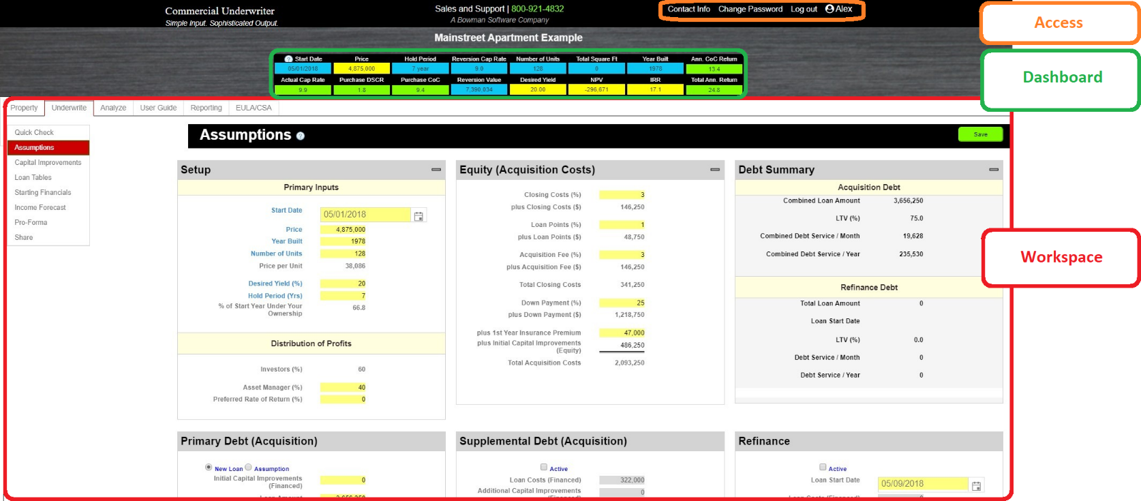
Dashboard is the real-time property performance indicator. As you enter data in the bright yellow boxes throughout the application and Save, the system recalculates and updates the dashboard in real-time. No matter where you are in the Commercial Underwriter application, the Dashboard is front and center, telling you the investment potential of the property. Workspace in Commercial Underwriter is where the work gets done.
Workspace has six tabs that direct you to various modules within the application:
- Property Tab – Add and delete properties. See your property list and properties shared with you by other Commercial Underwriter subscribers.
- Underwrite Tab – Complete the underwriting process by entering data into the bright yellow boxes. Underwrite consists of the Quick Check, Assumptions, Rent Roll and Pro-Forma modules.
- Analyze Tab – Analyze the numbers via the multi-year Pro-Forma.
- Apartment property types, Analyze consists of the Cash Flow, Net Proceeds from Sale, Rates of Return, and Present Value modules.
- Commercial property types include the same modules as Apartment in addition to the TILC module.
- Report Tab – Produce exportable reports in PDF or Microsoft Excel® format to send to others.
- EULA Tab – End User License Agreement and Privacy Statement that you agreed to. The EULA is the legally binding contract between you and AB Software LLC. Should the EULA and/or Privacy Statement be updated you will be prompted to accept the updated version upon login, and you can always access it here for future reference.
Copyright © AB Software LLC. All Rights Reserved.
Dashboard – Overview
When you select a property in the Property module, the Dashboard for that property will load. Notice that the property name is displayed above the dashboard and changes when you select a different property from the list. This is how you know which property is active.
After selecting a property, you can go directly into the Underwrite, Analyze or Report tabs to review the data for the active property (see Property Tab section for more information).
Dashboard – Color Codes
The Commercial Underwriter Dashboard is a real-time performance indicator. Meaning, it indicates the potential investment performance of the property as you enter and save data.
The Dashboard is color-coded for your convenience. The color indicators have the following meanings:

- Yellow– yellow boxes in the dashboard are your Advanced Financial Metrics. They are Price, Desired Yield, NPV (net present value), IRR (internal rate of return). To change the Purchase Price or Desired Yield, click on the name above the yellow box and you will be taken to the underwriting module where you can change that input. Change the Price and Desired Yield to quickly conduct sensitivity with you NPV and IRR.
- Blue – blue boxes in the dashboard are your Basic Financial Metrics. It includes the Start Date (date you plan to start the investment), Hold Period (how long you plan to be in the investment for), Reversion Cap Rate (Cap rate that you plan to sell the property at), Reversion Value (calculated by dividing the NOI from the final year by the reversion cap rate), Number of Units (only show when underwriting an apartment opportunity), Total Square Ft (calculated from the rent roll only when underwriting a commercial asset), and Year Built.
- Green– green boxes contain the real-time performance indicators – all the metrics you need present-day. These are Actual Cap Rate, Purchase DSCR, Purchase COC Return, Annualized COC/R and Annualized COC/S. Remember, “to update the green you must save the green.” Translated, in-order to update the green performance indicators, you must click the green “save” button after entering data or making any changes.
Start Date
Start Date is the date you close (take ownership) of the property. By default, Commercial Underwriter™ sets the Start Date to TODAY plus three months. You can click on the Start Date header in the Dashboard and the application will take you to the Underwrite>Assumptions module where you can change the Start Date.
The Start Date is changed in Underwrite > Assumptions.
Price
Price is the dollar amount paid for the property. It can be the asking price or your offer price. You can click on the Price header in the Dashboard and the application will take you to the Underwrite>Assumptions module where you can change the Price. If you change the Price at any point in the investment, make sure the Down Payment ($) is updated as well as the Total Loan Amount.
The Price is changed in Underwrite > Assumptions.
Desired Yield
Desired Yield is the rate of return you want to achieve on the overall property investment. The Desired Yield also functions as the Discount Rate in Net Present Value (NPV) and Present Value (PV) calculations. When used in the NPV and PV calculations, the values of future cash flows are discounted to present-day value using a rate equal to the Desired Yield. The real-time performance Dashboard is designed to allow an easy comparison between the Desired Yield (want) and Internal Rate of Return (actual).
When the IRR is equal to or greater than the Desired Yield the investment has passed the “hurdle test.” In other words, the Pro-Forma suggests that the property investment will produce a rate of return equal to or greater than your yield requirements, and you might decide to pursue further due diligence based on your own standards or investing criteria (see NPV and IRR sections below for more information).
You can click on the Desired Yield header in the Dashboard and the application will take you to the Underwrite>Assumptions module where you can change the Desired Yield.
The Desired Yield can be changed in Underwrite > Assumptions.
Hold Period
Hold Period is the length of time between acquisition and re-sale of the property. Commercial Underwriter allows you to set the Hold Period between 1 and 10 years.
The real-time performance indicators in the Dashboard reflect the specified Hold Period. For example, the Internal Rate of Return (IRR) displayed in the Dashboard represents the Internal Rate of Return (IRR) for the defined Hold Period (e.g. 5-years, 10-years, etc.).
You can click on the Hold Period header in the Dashboard and the application will take you to the Underwrite>Assumptions module where you can change the Hold Period.
The Hold Period can be changed in Underwrite > Assumptions.
Reversion Cap Rate
Reversion Cap Rate is the capitalization rate that you anticipate at the time of sale (at the end of the Hold Period). While Reversion Cap Rate is a simple percentage input, it is also an educated guess about the future.
More important than picking a specific cap rate is to understand the trend. Network with investors, real estate and finance professionals to understand if they are underwriting reversion cap rates above or below the purchase cap rates, and by how much.
Using a Reversion Cap Rate that is too low will inflate the Reversion Value (Sale Price) of your property and your projection will be unrealistic. The Reversion Value directly affects Net Gain(Loss) From Sale, which in turn impacts certain rates of return, such as the Total Return. The Total Return calculation averages the sum of all cash flows received (e.g. Cash Flow Before Tax for each year plus the Net Gain(Loss) from Sale), divides the sum into the amount invested (represented in this model by Total Acquisition Costs in the Underwrite>Assumptions module), and then by the number of years held (Hold Period) to display the Total Return. Further, the Net Present Value (NPV) and Internal Rate of Return (IRR) calculations use the total distributions in the sale year, which as noted, are affected by the Reversion (Sale) Value. You can see how if your Net Gains from selling the property artificially increase because of an artificially low Reversion Cap Rate then several measures of potential investment performance can be affected.
The Reversion Cap Rate is used, along with the Net Operating Income (NOI) from the last year of the Hold Period to derive the Reversion Value (see Reversion Value section for details).
NOTE: When the Reversion Cap Rate is higher than the Purchase Cap Rate, all things the same, the value would intuitively decrease over the Hold Period. However, other factors affect the value. When you study the Pro-Forma functionality in Commercial Underwriter, notice that you can set the income and expense adjustments differently. For example, if Income grows at a rate of 3% per year and Expenses grow at a rate of 2% per year, the spread between Income and Expenses will increase over time. This growth in Income functions as a “counter-balance” to the higher Reversion Cap Rate in this example. Commercial Underwriter defaults Income growth at 3% and Expense growth at 2%. In underwriting, inputs are related to one another. It is your responsibility to understand these relationships and their effect on potential investment performance.
The Reversion Cap Rate can be changed in Underwrite > Pro-Forma.
Reversion Value
The Reversion Value is the value of the property at the time of sale. In Commercial Underwriter, the Reversion Value is derived as follows:
Reversion Cap Rate is an input field in the Underwrite > Pro-Forma module (see Reversion Cap Rate section for details). You can click on the Reversion Cap Rate header in the Dashboard and the application will take you to the Underwrite > Pro-Forma module where you can change the Reversion Cap Rate.
Net Present Value (NPV) and Internal Rate of Return (IRR)
NPV and IRR are Discounted Cash Flow techniques widely used to measure investment performance (Appraisal Institute, 2013). The two metrics are described together because they are related as you will learn below. NPV is presented in dollars and IRR is a percentage (rate). The high-level tutorial provided below does not obviate your responsibility to obtain competent advice, education, and understanding about Commercial Financial Activities as stated in the EULA.
Discounting is the process of determining the Present Value of future cash flows (e.g. today’s value of cash flow in the future). Discounting addresses the time value of money because a dollar is worth more today than it would be worth in the future. The Discount Rate is the rate (percentage) at which the future cash flows are discounted to present-day value.
Concept: You should pay less for benefits received farther into the future because you must wait longer for those. In real estate, that means the present-day value of rent received 10-years from now is of less value than the rent received 6 months from now, therefore you should pay less (per dollar) for the rent you expect to receive in 10 years.
Net Present Value (NPV) is equal to the Present Value of future cash inflows minus the Present Value of cash outflows. In Commercial Underwriter, the Present Values for future cash flows are calculated using a Discount Rate equal to the Desired Yield setting in the Underwrite>Assumptions module. The Desired Yield in Commercial Underwriter is effectively your rate of return requirements for the overall investment period and the cash outflows are equal to the Total Acquisition Costs from the Underwrite>Assumptions module (see Desired Yield section for details)
NPV is dependent on three things:
- Desired Yield (Discount Rate),
- Cash inflow (which equals Cash Flow Before Taxes in this model) and
- Cash outflow (which equals the Total Acquisition Costs in this model).
NPV can either be positive, negative or equal to zero.
- Positive NPV – Intuitively, when the NPV is positive your cash inflows are greater than your cash outflows at the specified Price and Desired Yield over the specified Hold Period. The Appraisal Institute describes a positive NPV as “the investment exceeds the return requirements of the investor.”
- Negative NPV – The opposite is true when the NPV is negative – cash inflows are less than cash outflows at the specified Price and Desired Yield over the specified Hold Period. The latter scenario does NOT necessarily mean the investment was a loser, it means that you did not achieve the return you wanted. Similarly, the Appraisal Institute describes a negative NPV as “the investment is not considered feasible” based on your stated requirements for the rate of return.
- NPV of Zero – Finally, when NPV is zero the “IRR is the rate that discounts all returns from an investment, including returns from termination, to a present value that is equal to the original investment” or described another way “the rate of discount that makes the net present value of an investment equal to zero is the Internal Rate of Return” (Appraisal Institute 2013). In Commercial Underwriter, when the IRR equals the Desired Yield, the NPV will equal zero. Explained another way, when the actual rate of return (IRR) equals the exact rate of return you want (Desired Yield), NPV will equal zero.
The relationship between NPV, Desired Yield, and IRR can be summed up this way:
- Desired Yield is the rate of return you want to achieve, and IRR is the rate of return you actually achieve based on the inputs.
- NPV is roughly the amount (in dollars) above or below the stated Price that would cause the IRR (actual) to equal the Desired Yield (want).
Add / Activate / Delete Properties
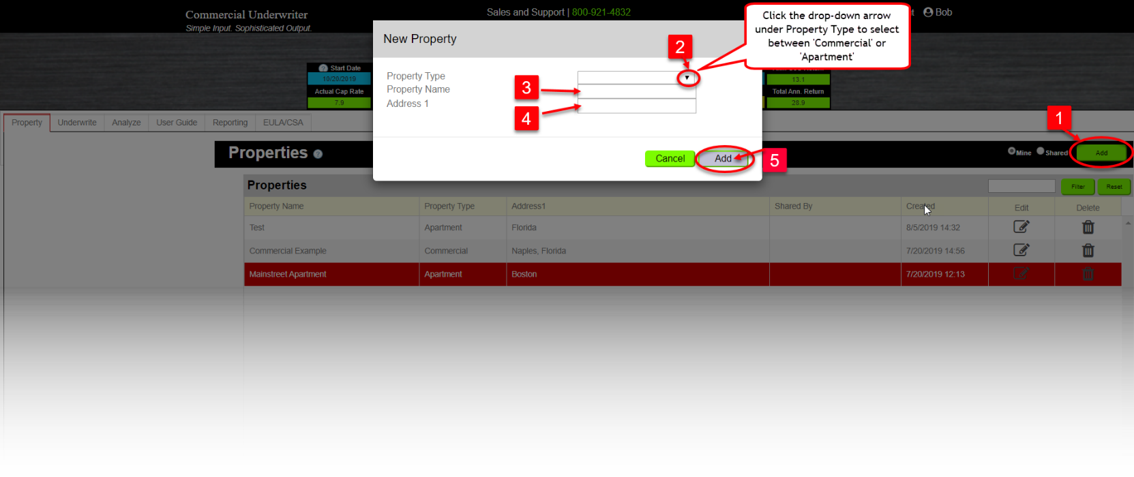
Adding a property can be completed in seconds, following the simple process below:
- Click the “Add” button on the Property bar.
- From the Property Type drop-down list, select the Property Type that corresponds to the actual property you are underwriting. The Property Type will determine what fields (input and outputs) are displayed in the Underwrite and Analyze modules. Select “Commercial” for a square-footage based analysis (office/retail properties) or select “Apartment” a unit based analysis (multi-unit residential properties).
- Type in a descriptive property name.
- Type in the property address.
- Click the “Save” button to add the property to your list of properties and begin underwriting. After the property is added, it will appear in the Property View called “Mine.” See below for detailed information about Property Views.
Property Views
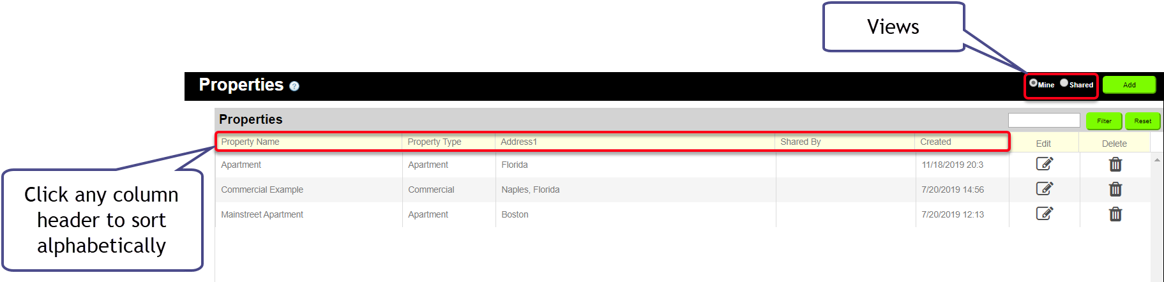
The following Property Views are accessible via the radio buttons on the Properties bar:
- Mine – The “Mine” view shows the properties you have created.
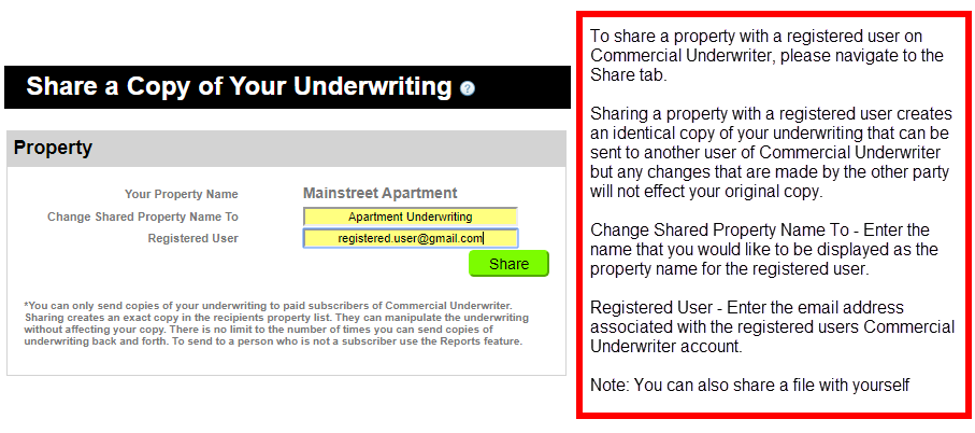
- Shared – The “Shared” view shows properties that others have shared with you. NOTE: If you share a property with another Commercial Underwriter subscriber, it will appear in their “Shared” view. You can also share a property with yourself.
In any Property View, you can click on any column header to sort the Property List.
Underwrite Tab
Quick Check
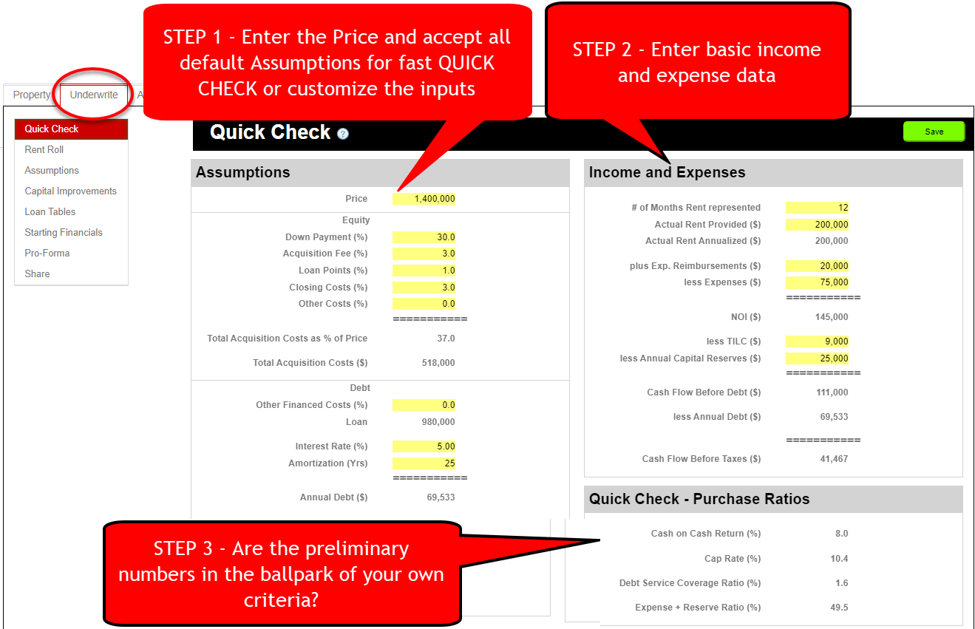
The Quick Check module allows you to perform “preliminary” underwriting in just a couple of minutes. The purpose of Quick Check is to quickly assess property financials so that, based on your purchase/investment criteria, you can determine if the investment potential is in the “ballpark” and therefore worth your time to complete the full underwriting process.
Quick Check is not integrated with the full underwriting module and the data that is entered here is not transferred to the actual underwriting of the property nor is it displayed in the dashboard.
Quick Check – Components
Quick Check has three components:
- Assumptions
- Income and Expenses
- Quick Check
Assumptions – For the fastest preliminary underwriting enter the Price and accept the defaults. Or, customize the inputs in the yellow boxes.
Income and Expenses – Enter basic income and expense data about the property. This will be data that you likely received from the broker or seller.
NOTE: The TILC inputs are only visible for Commercial Property types.
Quick Check – Purchase Ratios – Examine the results of your inputs to determine if the purchase ratios meet your own underwriting criteria. If so, you may decide to move forward into the complete underwriting process.
Rent Roll
The Rent Roll module appears only for Commercial property types.
Rent Roll for Commercial Property type:
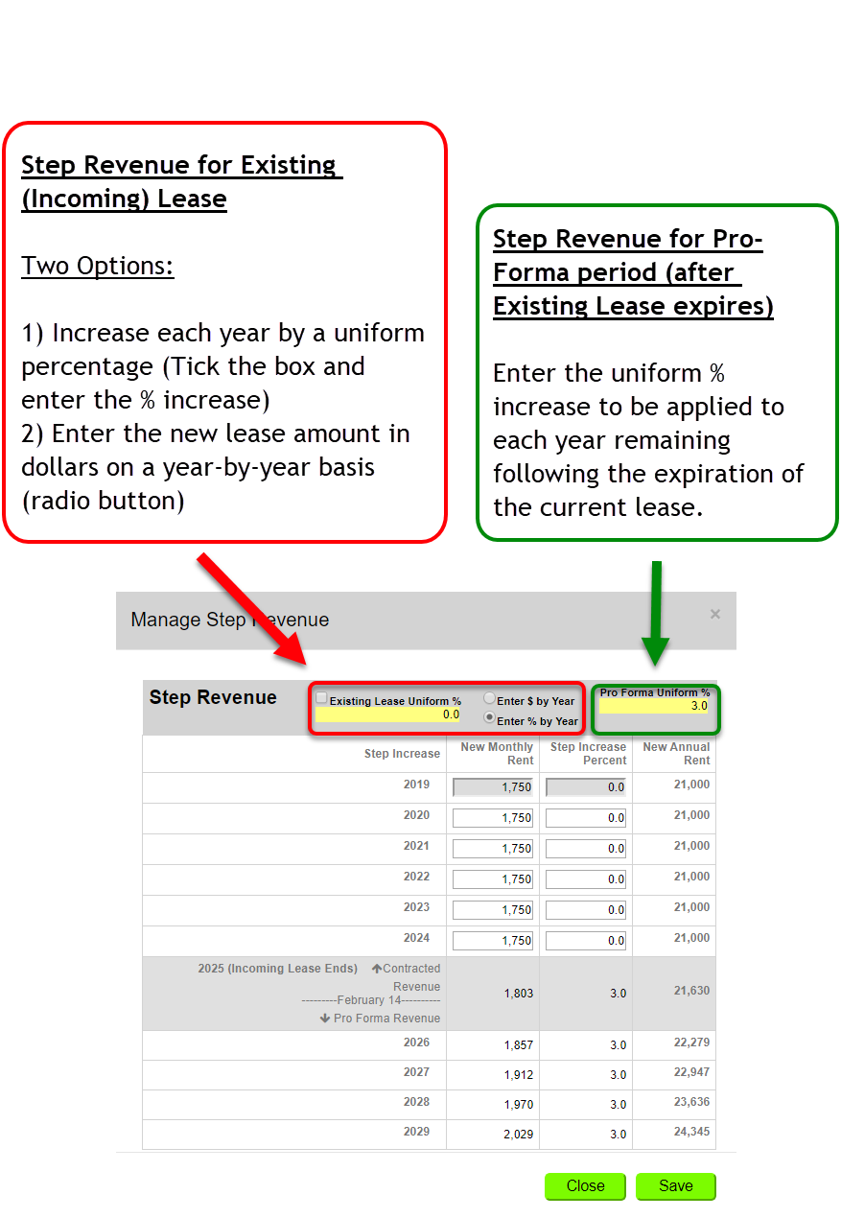
- Allows you to enter individual leases
- You can enter rents monthly or annually
- Calculates and displays the rent increases dollar amount or percentage
Assumptions
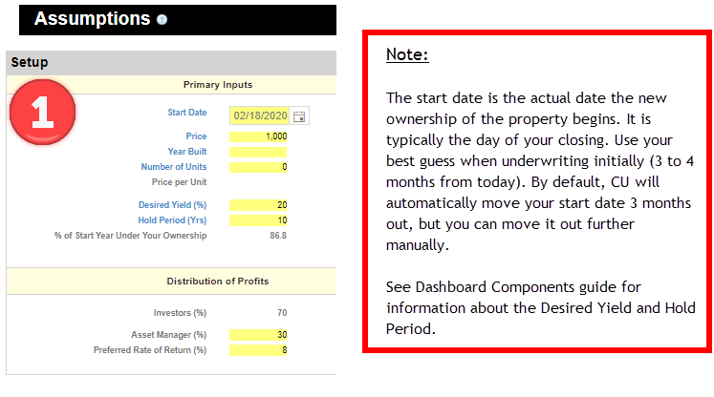
The Assumptions module is the place to enter basic info about your property, such as Price and Start Date. It is also the place to enter the underlying assumptions that Commercial Underwriter uses to analyze the property performance, such as the Hold Period, Desired Yield, Equity/Acquisition cost information, and Financing (Debt) information.
The guide below explains each area of Assumptions.
Overview
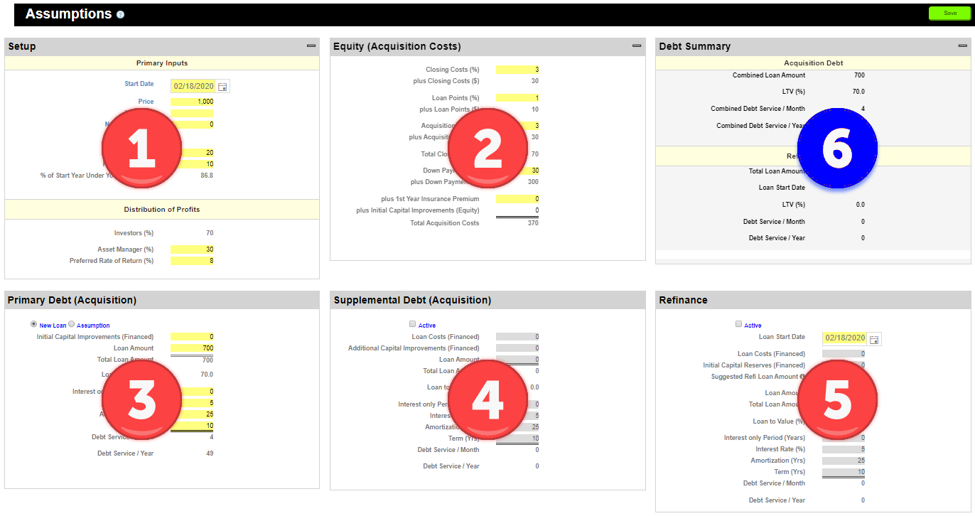
The Assumptions Module consists of six (6) functional areas:
- Setup – Enter Primary Inputs such as Price, Start Date, Desired Yield and Hold Period. Also, enter Distribution of Profits (carve-out between Asset Manager and Investor(s) and Preferred Rate of Return percentage. For Apartment property types you will also enter the number of units here.
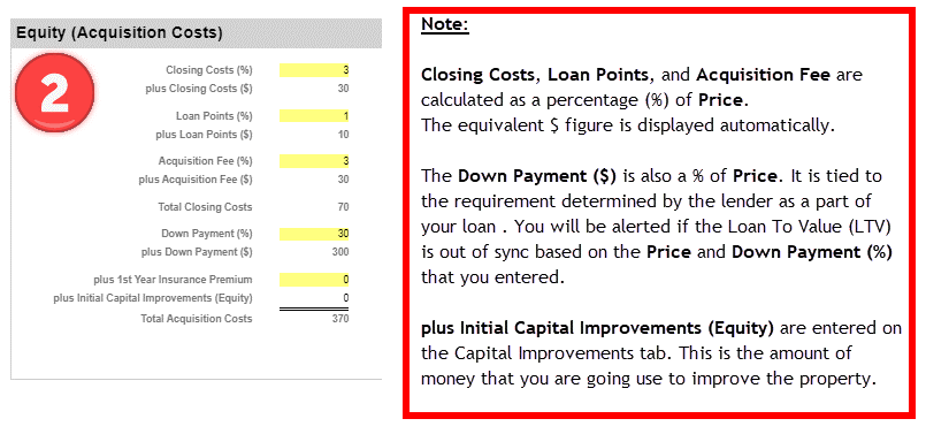
- Equity (Acquisition Costs) – Enter data about the cost of the acquisition, such as Closing Costs, Loan Points, Acquisition Fee, Down Payment, First Year Insurance Premium and Initial Capital Improvement which is enter on the Initial Capital Improvements tab. These funds are sourced from Investors and are considered the Equity portion of your deal. See below for details.
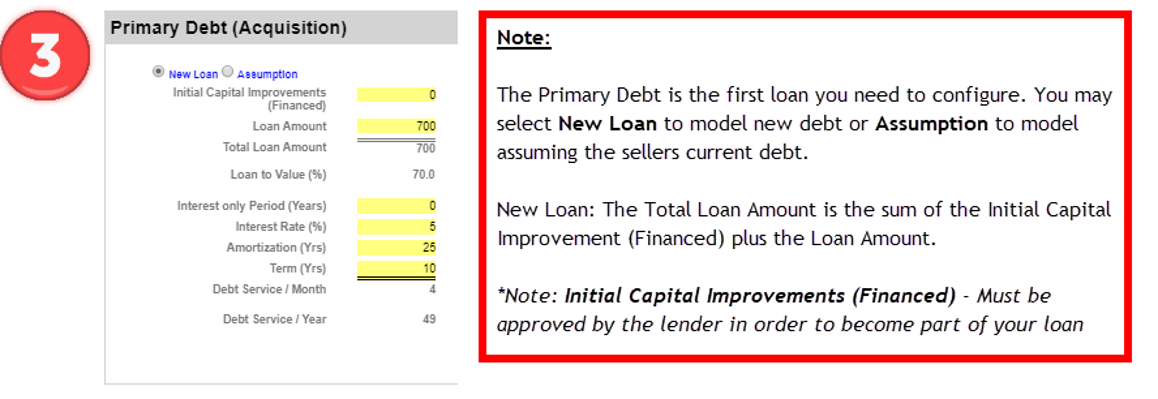
- Primary Debt (Acquisition) – Enter data about your Primary loan here. You may underwrite a new loan or assume the seller’s loan in this field by toggling the radio button. Your primary loan may be short term or may run the duration of your Hold Period. See below for details.
- Supplemental Debt (Acquisition) – Enter data about your Supplemental acquisition loan here. For example, if you are assuming the seller’s functionality and you need additional financing from the bank to acquire the property, enter it here. See below for details.
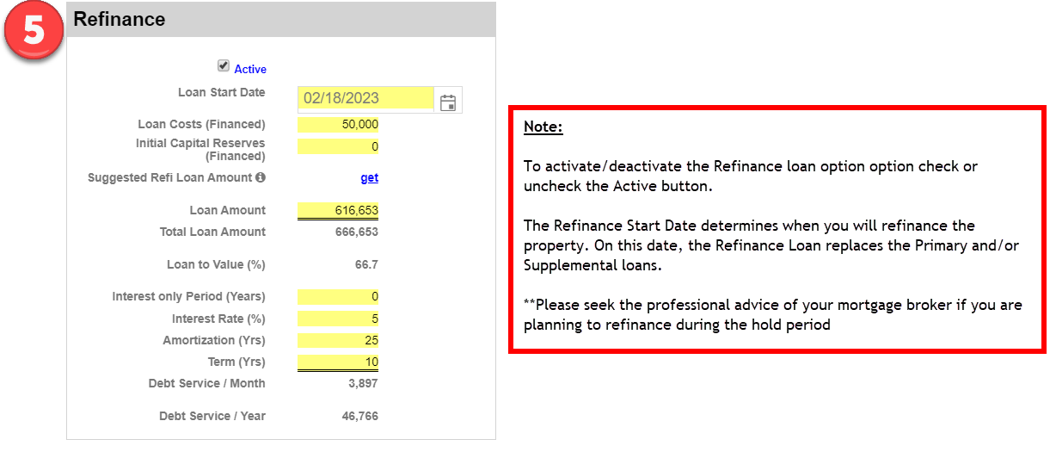
- Refinance – Enter data about your Refinance loan if you plan to refinance during the Hold Period. See below for details.
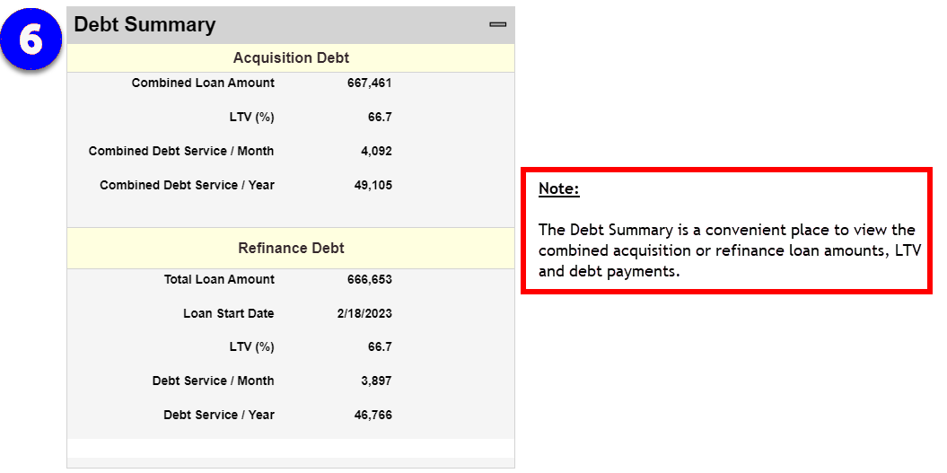
- Debt Summary – The Debt Summary display shows the combined acquisition debt (if you are using both Primary and Supplemental loans) as well as the Refinance debt in one concise view.
NOTE: The amortization tables for the Primary, Supplemental and Refinance loans are visible in the Loan Table tab.
1. Setup
2. Equity (Acquisition Costs)
3. Primary Debt (Acquisition)
4. Supplemental Debt (Acquisition)

5. Refinance
6. Debt Summary
Starting Financials
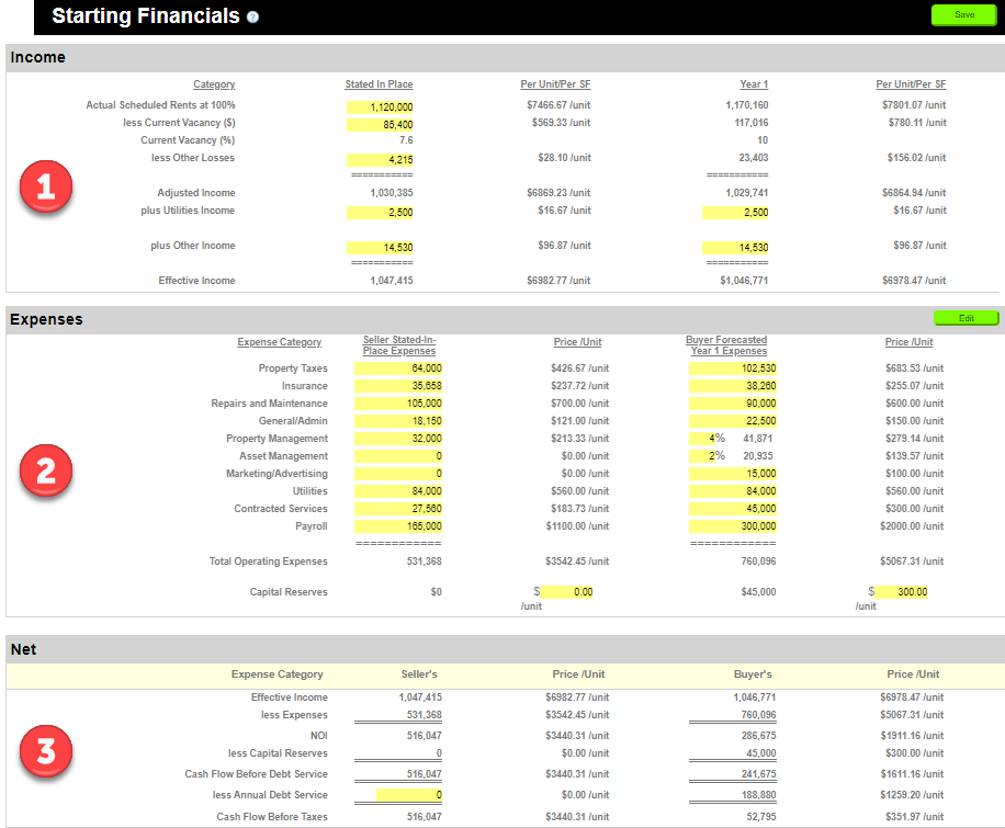
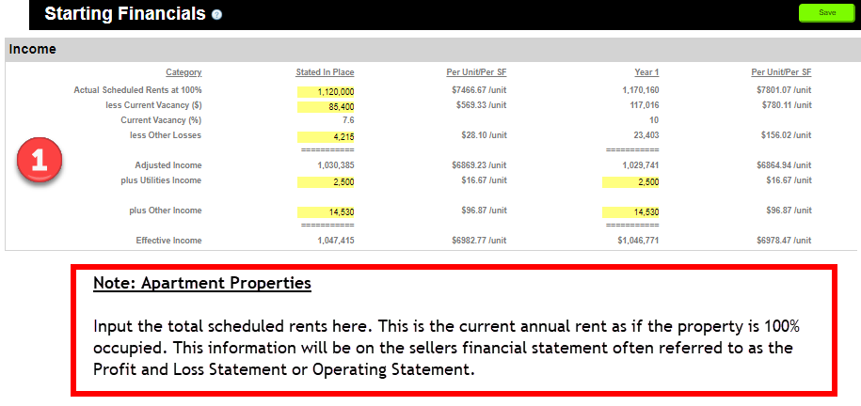
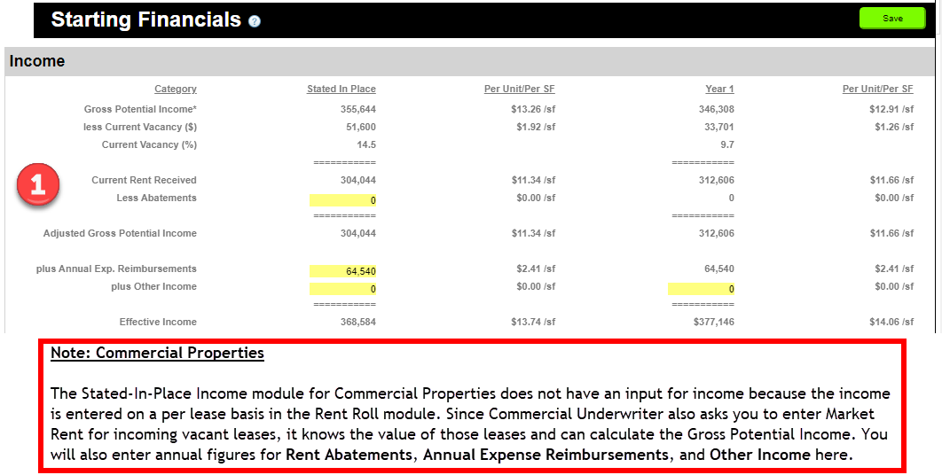
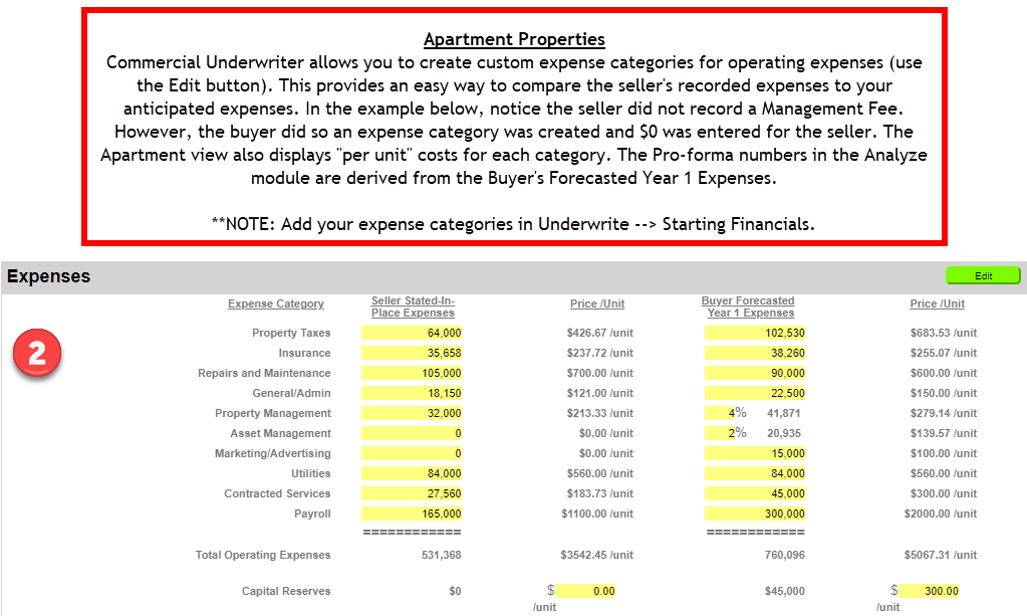
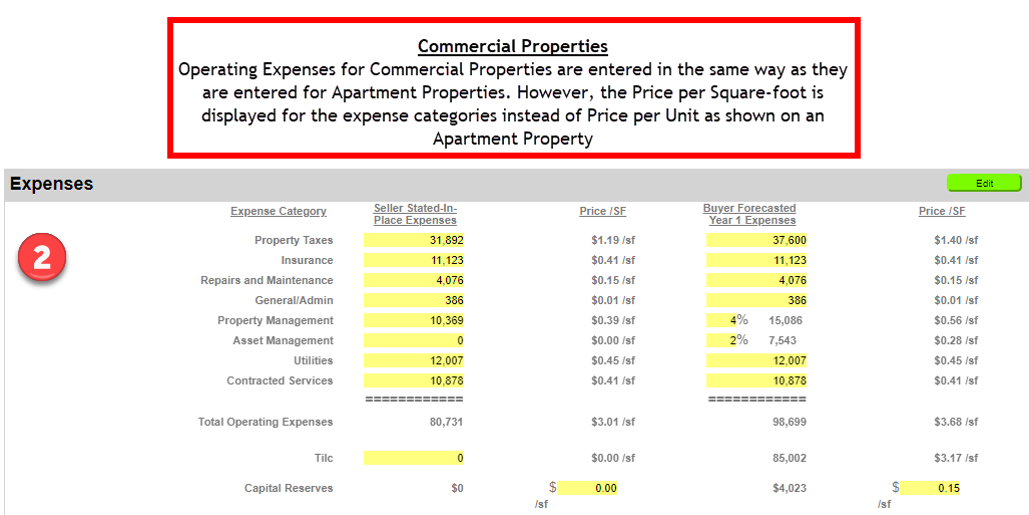
The Starting Financials Module is where you enter the Stated-In-Place information from the Seller as well as the Buyer’s anticipated Year 1 income and expenses. The Starting Financials NET module displays the purchase metrics that are shown in the dashboard.
The guide below explains each area of Starting Financials.
Overview
The Starting Financials Module consists of three (3) functional areas:
- Income
- Expenses
- Net
1. Income
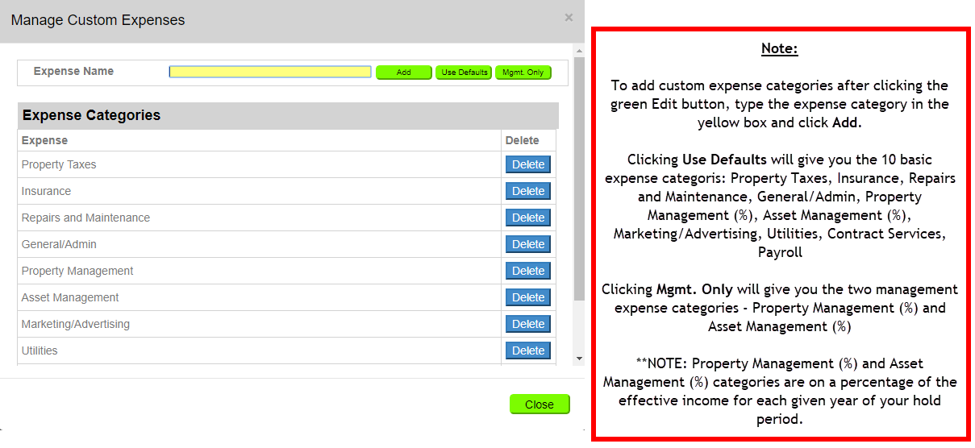
2. Expenses
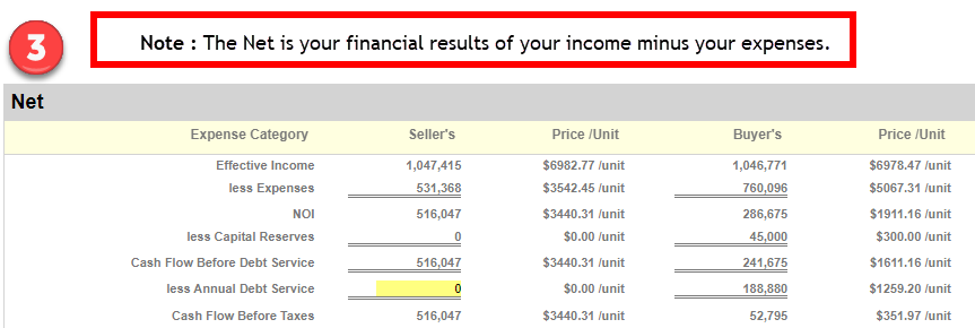
3. Net
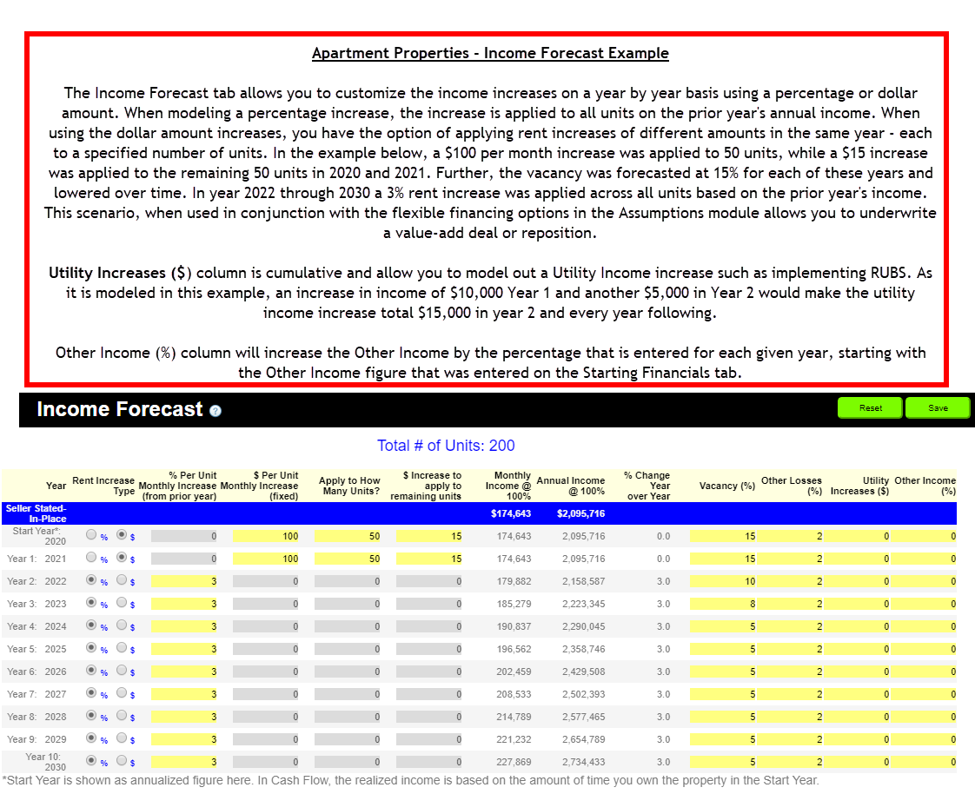
Apartment Income Forecast
The Apartment Income Forecast is for Apartment Property types only. Here, you can customize the income, vacancy, other losses, utility increase ($), and other income (%) year by year. The graphic below summarizes the functionality of the Apartment Income Forecast module.
Proforma tab

Share tab

Analyze Tab
Analyze Tab
- TILC
- Cashflow
- Sale
- Rate of Return
- Present Value
Reporting
The Reports module allows you to export data from Commercial Underwriter in a format that is suitable for presentation to others.
To create reports follow these steps:
1. Enter your personal contact information in the Contact info section on the main screen. This information will appear on the cover page of the full reports. Click on the Save button to save your information and then the Close button to return to the Property List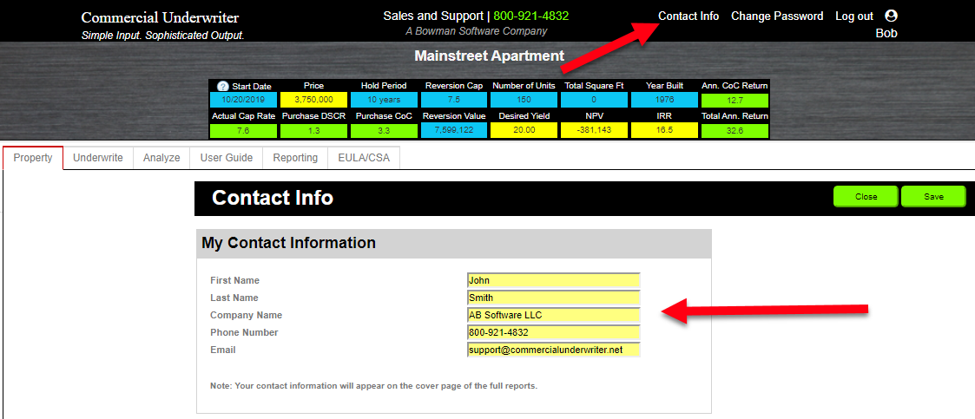
2. Select the property for which you want to create a report from the property tab.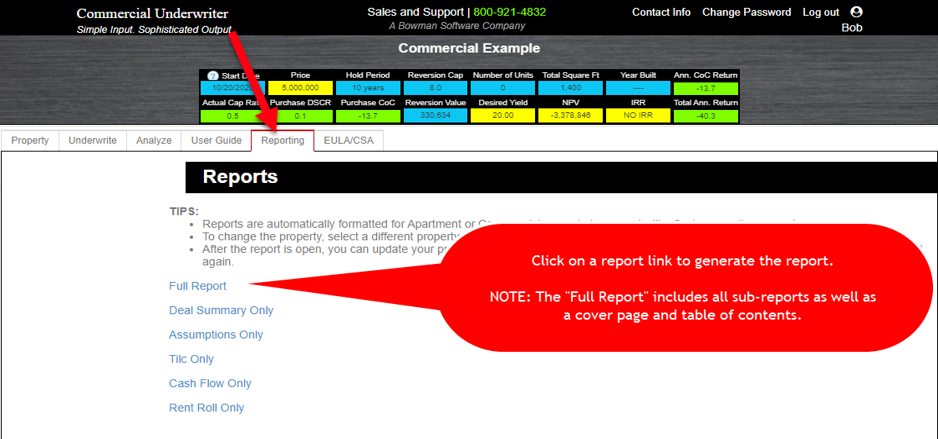
3. Navigate to the Reports tab and click on the report you want to create.
*Note: The reports are “context-aware,” meaning the report will reflect the active property. To create a report for a different property, you must select a different property in your property list. 4. Use the navigation buttons to navigate through the report. In the full report, you can click on any item in the Table of Contents to go directly to the referenced page.
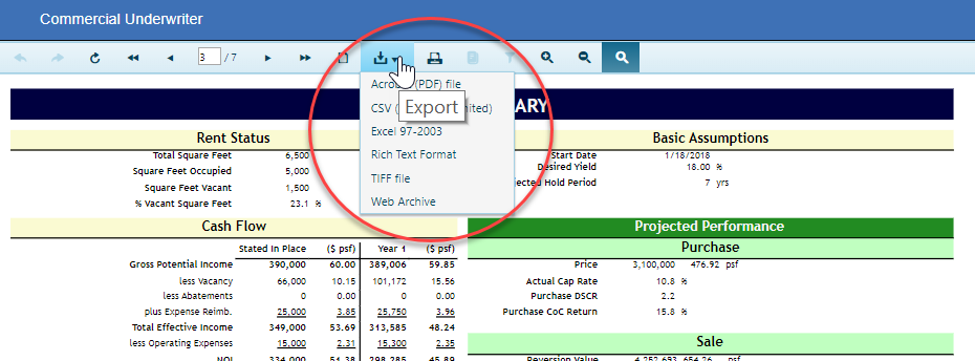
5. Use the Down Arrow to select an export format (PDF, Excel, CSV, RTF and more).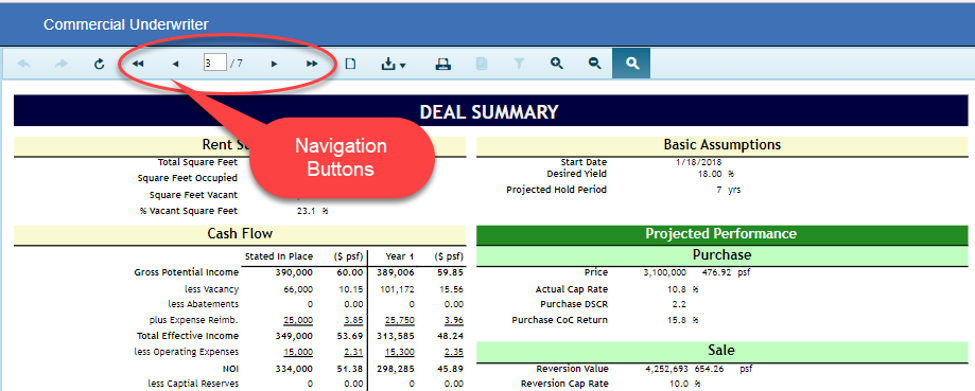
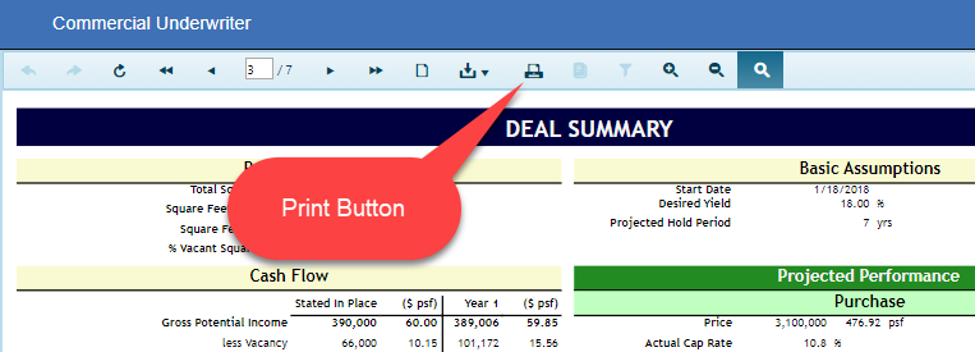
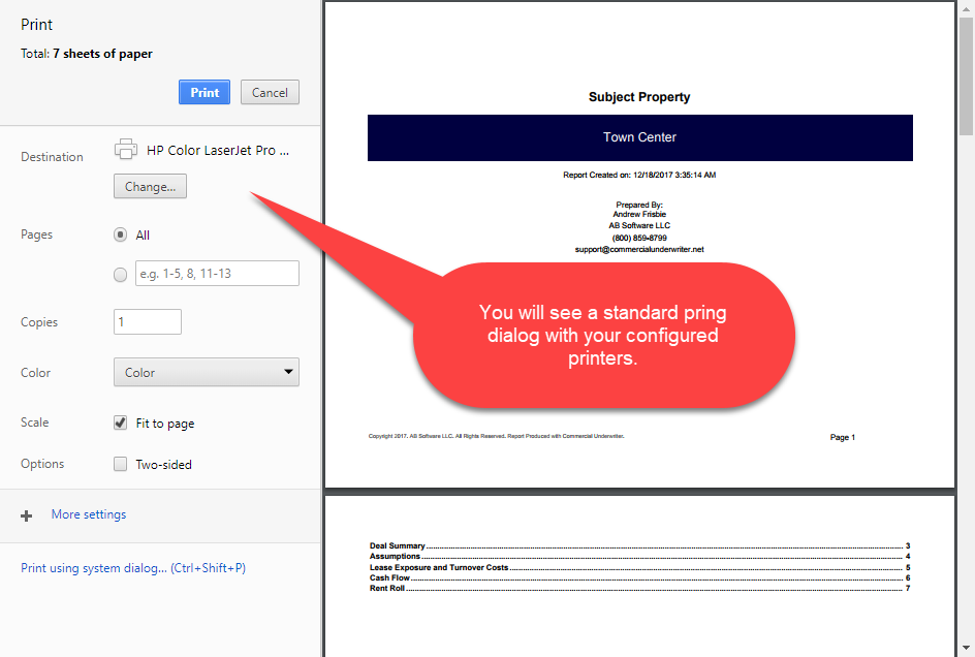
7. Use the refresh button to update the report after making a change to the underlying data (Example: You want to change the Hold Period from 10 to 7 years. After making the change in the Underwrite tab, click the refresh button to update the report).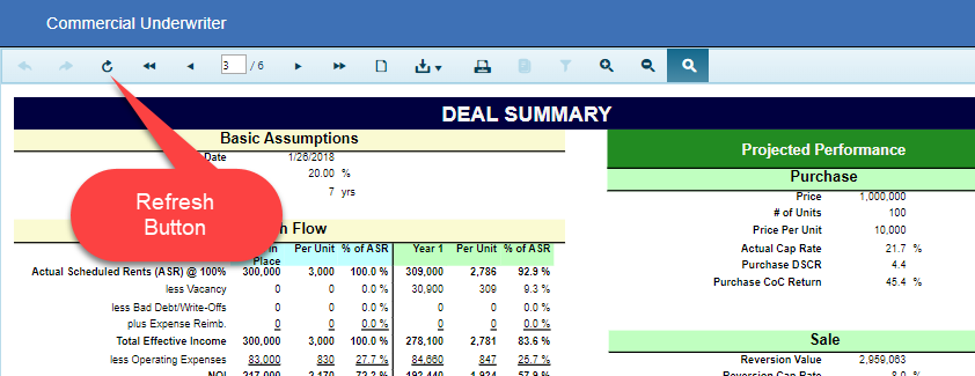
8. Use the Zoom In/Out buttons to make the report larger or smaller on the screen.